
Flutter
Tapping the White Space of the GestureDetector Widget's Child
How to make the white space within a GestureDetector widget in Flutter interactable, using the HitTestBehavior property.
October 12, 2023
Originally posted here
Developing an app with a clean UI makes it easier for users to interact with the application. Managing white space is one of the essential keys to achieving this clean design. Although white space is technically empty, it still can serve a functional purpose. In this article, I’ll show you how to make the white space within a GestureDetector widget in Flutter interactable.
Unresponsive White Space
I recently implemented a menu design using the GestureDetector widget in Flutter. Although the menu label and icon responded to taps as expected, tapping the white space did not trigger any action.
Here, I will show how I solved that issue. It is a simple solution that is already provided by Flutter. Let’s make a simple UI that is similar to that issue.

We will create an account menu. When we tap it, it will respond by displaying a message on the snack bar.
Here is the code:
GestureDetector(
  onTap: () {
    ScaffoldMessenger.of(context).showSnackBar(
      const SnackBar(content: Text('Account')),
    );
  },
  child: Row(
    mainAxisAlignment: MainAxisAlignment.spaceBetween,
    children: [
      const Padding(
        padding: EdgeInsets.all(8),
        child: Icon(Icons.person),
      ),
      Text(
        'Account',
        style: Theme.of(context).textTheme.bodyLarge,
      ),
    ],
  ),
)
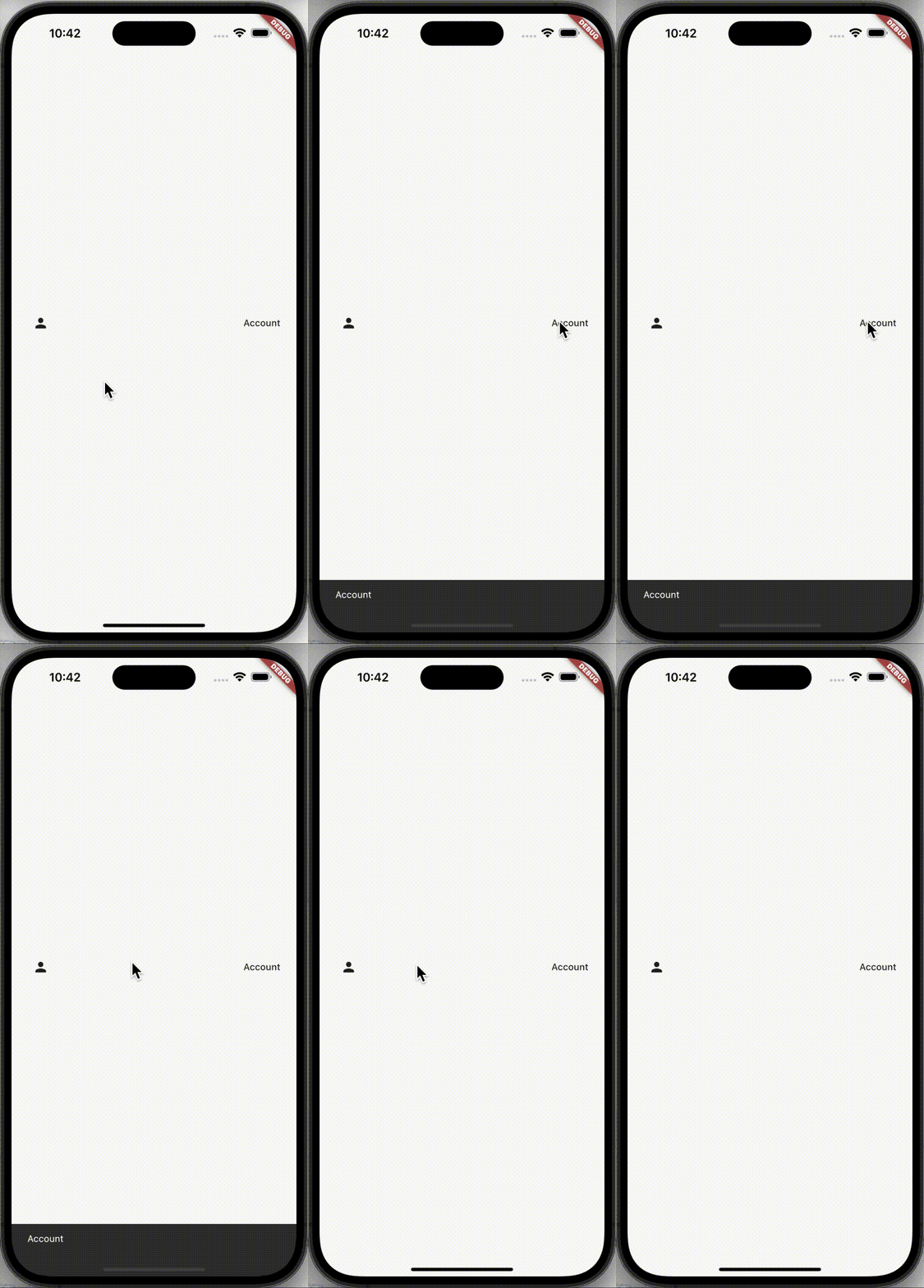
Let’s run the code above. We will see that nothing happens when we tap the white space between the icon and the account label.
Understanding HitTestBehavior
Before diving into the reason why it happened and what’s the solution, let’s understand what HitTestBehavior is. It’s an enumeration class that helps the GestureDetector widget to determine how to respond during hit testing. Hit testing is the process used to determine what UI elements are located at a specific position on the screen.
Types of HitTestBehavior
deferToChild
This is the default behavior. It means that the child of the
GestureDetectorwidget is the one who decides whether to react to the tap or not.
behavior: HitTestBehavior.deferToChild,
translucent
The
GestureDetectorwill respond to events within its bounds but also allows targets visually behind it to receive events. This is particularly useful when you have overlapping elements.
behavior: HitTestBehavior.translucent,
opaque
The
GestureDetectorconsumes the event and preventing any visually behind elements from receiving it.
behavior: HitTestBehavior.opaque
Solution
After understanding HitTestBehavior, we know the reason why tapping the white space did not trigger any action. It is because the behavior in GestureDetector is HitTestBehavior.deferToChild.
So, to solve it, we must set the behavior property of the GestureDetector to either HitTestBehavior.translucent or HitTestBehavior.opaque.
GestureDetector(
  behavior: HitTestBehavior.translucent, // or HitTestBehavior.opaque
  ...
)
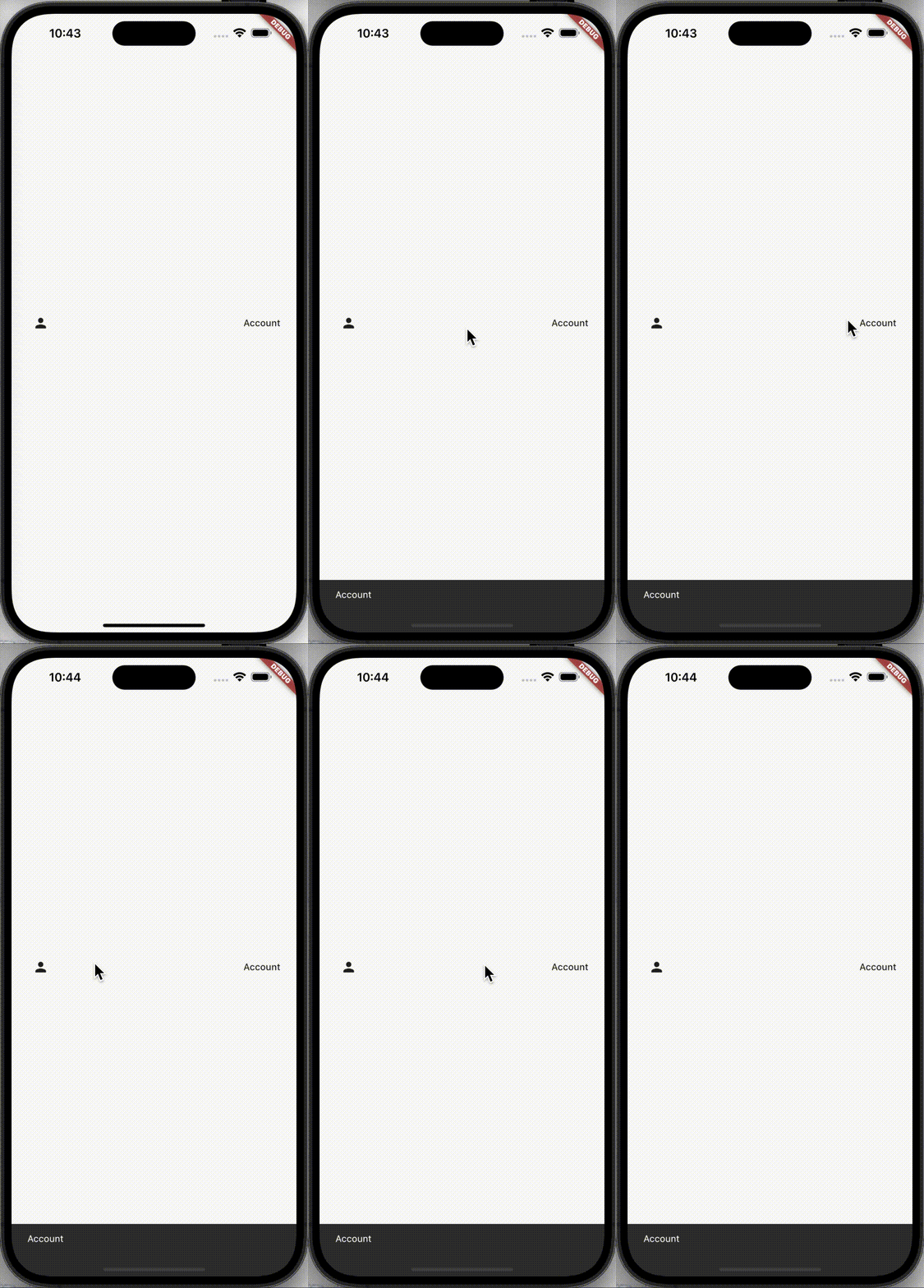
Let’s run the code above that we already fixed.
Conclusion
Using the right HitTestBehavior can make your Flutter app more intuitive and user-friendly by making effective use of white space.